Enable Nonce
HTML Forms has an optional Enable Nonce setting to add the WordPress nonce field to each of your forms. The WordPress nonce provides an extra security and anti-spam layer to your forms. The nonce field helps HTML Forms confirm that a form submission is coming from your site. This is a simple way to add extra security to your form without relying on third-party solutions like hCaptcha or Google reCAPTCHA on your site.
To turn the nonce on, go to the HTML Forms settings screen and select the “Yes” option on the Enable Nonce setting. Save your settings, and the nonce field will automatically appear and be checked on all the forms you’ve created with the plugin. Select the “No” option to immediately remove the nonce field and nonce check from your forms.
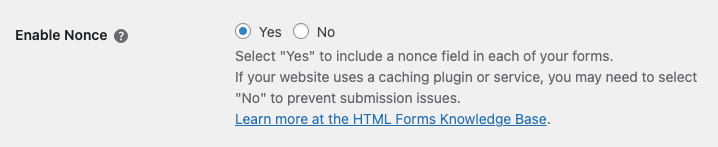
Enabling Nonce on Cached Websites
A word of warning: the nonce field might conflict with your site’s caching plugins or third-party implementations. Many caching solutions have a cache lifetime beyond the expiration time of the WordPress nonce. When this happens, form submissions can become inconsistent.
By default, the value of the Enable Nonce setting is “No” to help prevent these issues. If you do not use caching on your site, you can freely enable the nonce. If you do have caching enabled on your website, check with the caching solution’s settings to determine whether the caching will conflict with the nonce and prevent your forms from submitting reliably.
Related Posts from Our Knowledge Base
Roman Grigorian has written a great step-by-step guide on how to use the HTML Forms plugin with Google Tag Manager, Google Analytics, and Google Ads to track submissions.
Learn how to install the HTML Forms Premium add-on to get access to additional features not found in the base plugin.