Google reCAPTCHA v3
HTML Forms offers support for Google reCAPTCHA v3. The process is simple.
Step #1
Generate a Site Key and a Secret Key for your site by registering at https://www.google.com/recaptcha/admin/.
Step #2
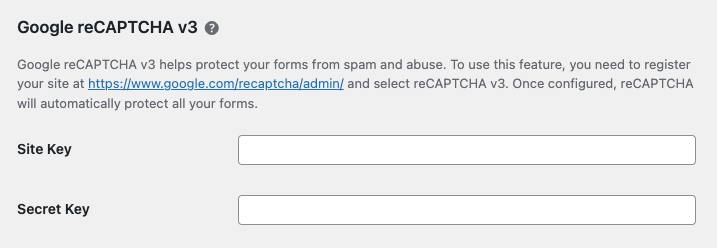
With your keys in hand, add them to the Google reCAPTCHA v3 fields in the HTML Forms plugin settings screen:
Step #3
Confirm your keys are working. A simple notification will appear in the WordPress admin once you have entered in your Site Key and Secret Key and they have been verified to work.

Debugging Issues with Google reCAPTCHA v3
If you do not see this notification, there is a problem with your keys, and you must visit Google’s reCAPTCHA site to learn more.
Form submission problems with working keys can be investigated further by enabling WP_DEBUG on your WordPress site. HTML Forms will write reCAPTCHA-specific errors and messages to your site’s error log when WP_DEBUG is enabled.
Related Posts from Our Knowledge Base
Check out our collection of simple code snippets you can use to get the most out of HTML Forms on your WordPress websites.
HTML Forms Premium automatically adds an easy to reference widget to the WordPress dashboard.